
How does UppSales work?
1
Sign up for the platform.
2
Choose your subscription plan.
3
Upload or import data from Excel files
4
Start collecting orders!


UppSales is an order collection app designed for sales agents. The starting point is the Excel price list you already have: you import it into the app, and from that moment your product catalog is always with you, on your phone, tablet or browser. During visits you collect orders by clicking products directly in the app, with customer discounts applied automatically.
If you also have the supplier’s catalog in PDF format, you can upload it to the app and link it to the products: during the visit you can browse the same pages of the catalog and add products to the cart directly from there. But it’s not mandatory; UppSales also works perfectly with products imported from your Excel list.
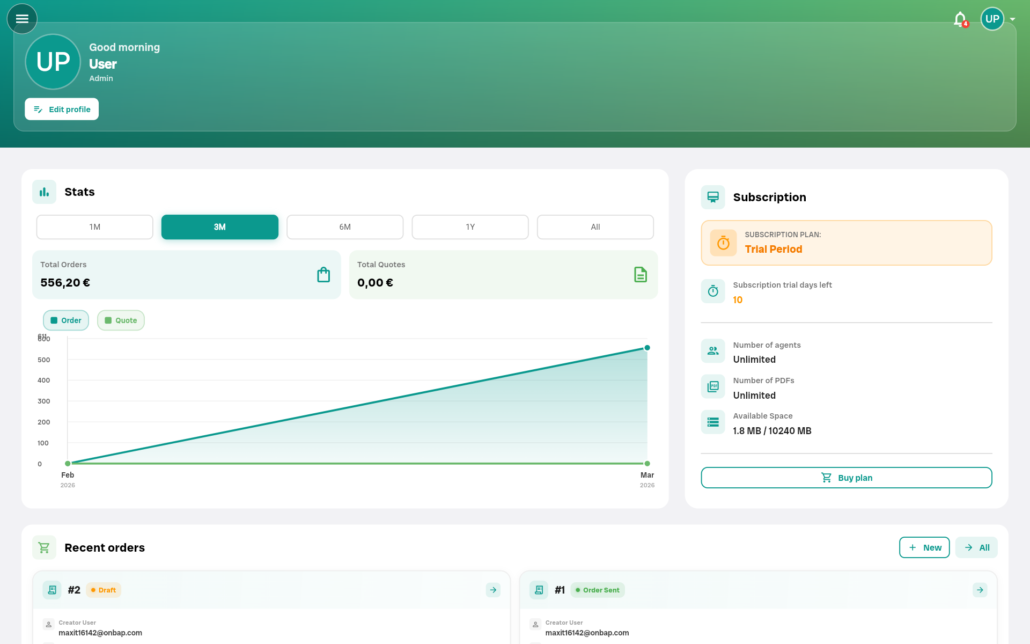
Excel price list
It contains product codes and base prices. It is imported into the app and becomes the navigable catalog from which to collect orders. It is the mandatory starting point.
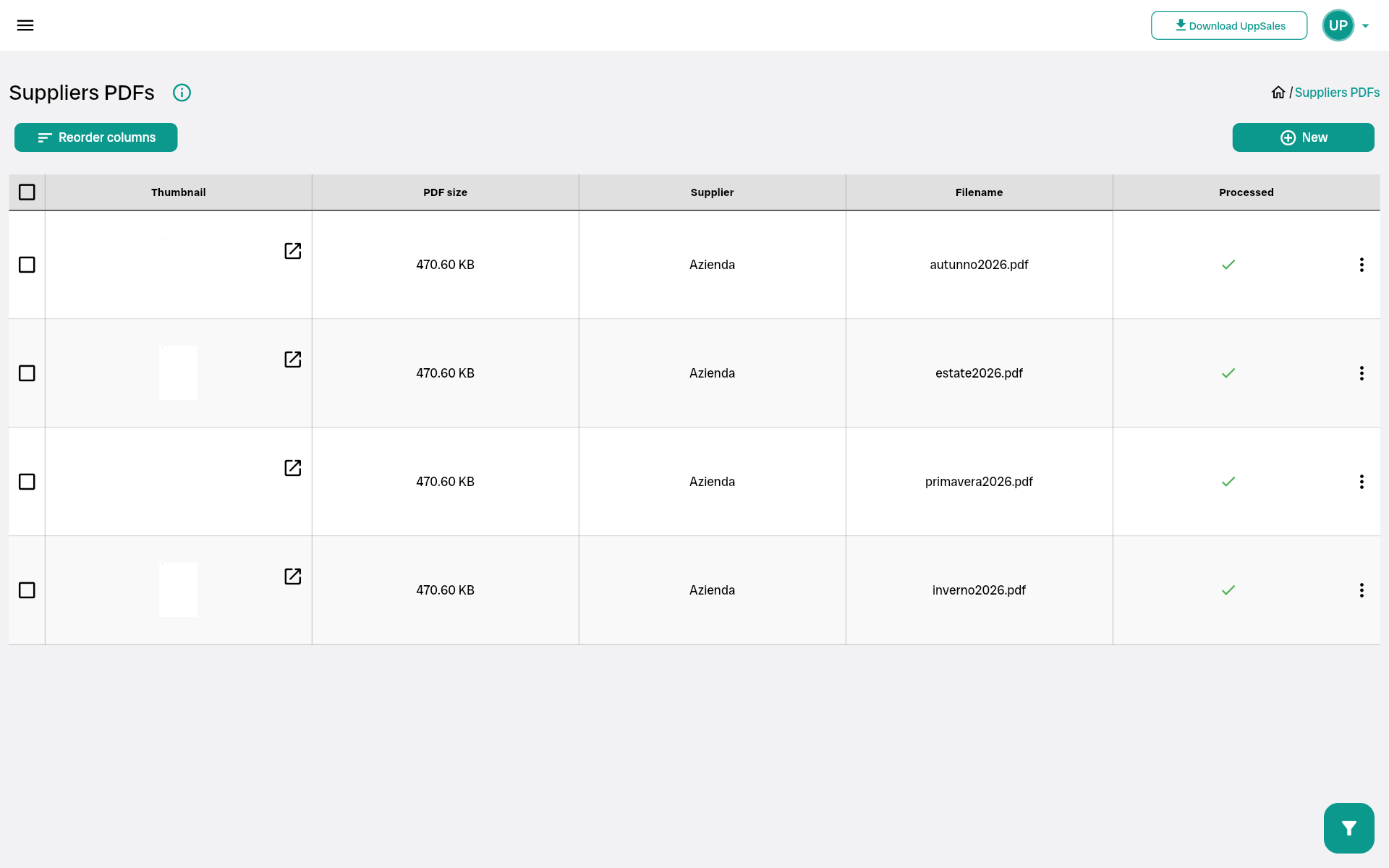
Supplier’s PDF catalog
Available digitally for some suppliers. If you upload it to the app and link it to the products in the list, you can click the codes directly on the PDF pages during your visit.
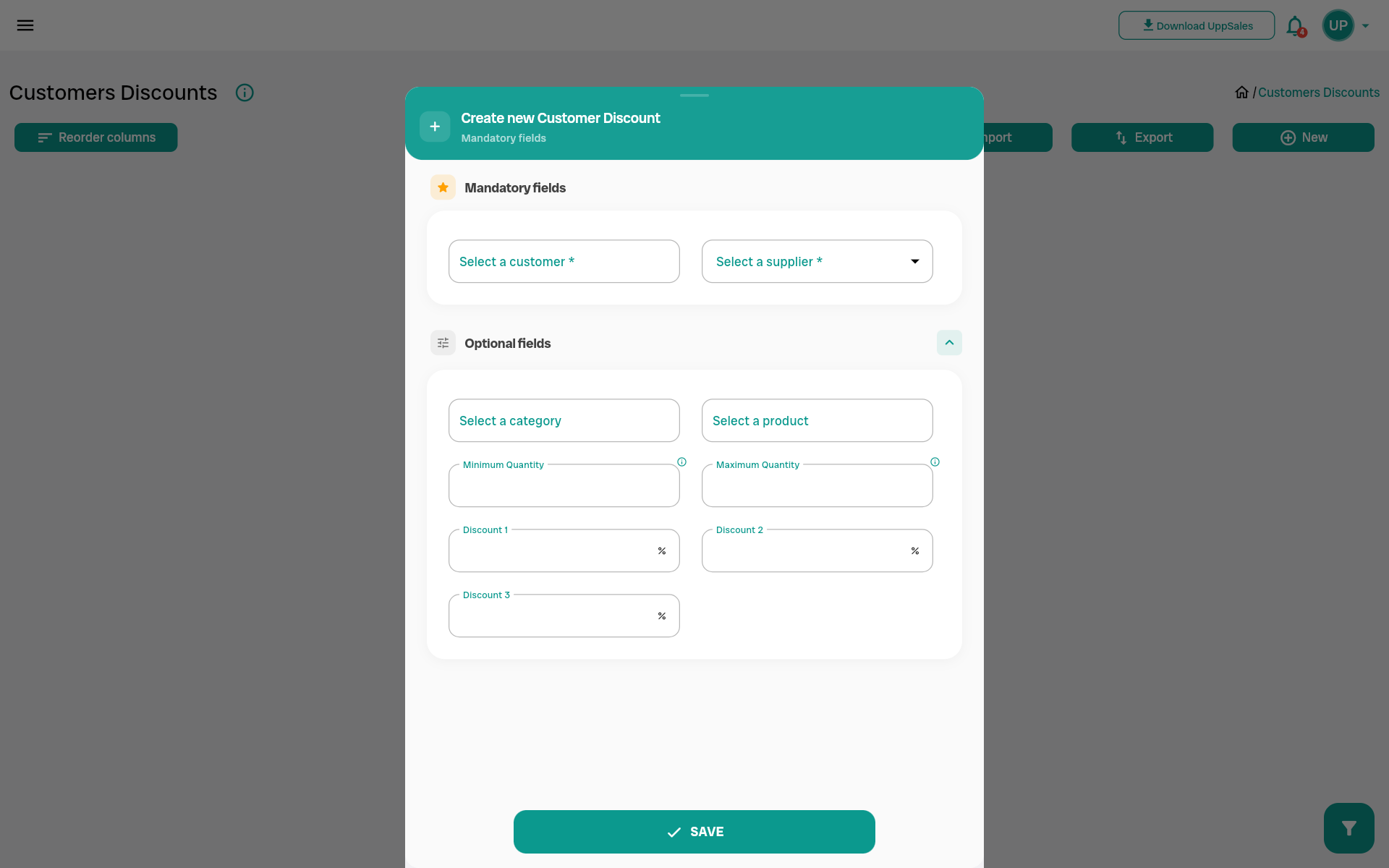
Discounts per customer
They are configured in UppSales above the base list price. They apply automatically when each order is opened for that customer, regardless of how the products are selected.
The initial setup is done once and takes very little time.
1. Registration
You create your account at platform.uppsales.io in a few minutes. During the 15-day free trial you have access to the full version with no limitations and no credit card.
2. Importing the price list from Excel
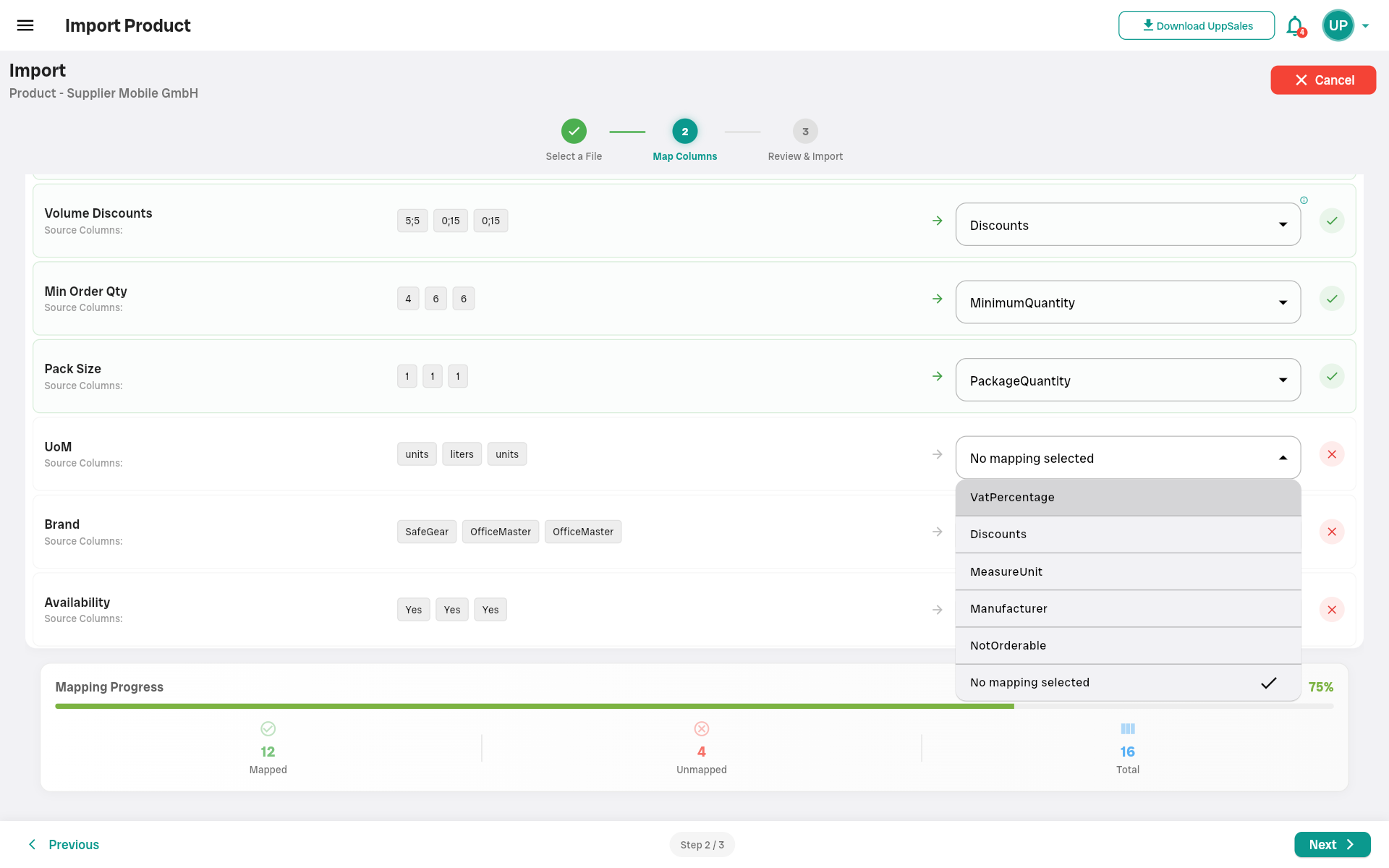
You upload the Excel file of the price list: the one you already have, with product codes and base prices. If you use the UppSales template, the system automatically recognizes it and it loads in seconds. If your file has a different structure, you map the Excel columns to UppSales fields only once-the mapping is saved and reused automatically each time you import a price list update. In the same way you can import customers and suppliers. The flow is completely bidirectional: anything you import from Excel you can edit directly in the app, and anything you enter or edit in the app you can export to Excel at any time. If you prefer to update the data in Excel and re-import it, you can do so-the system recognizes the structure and updates only the changed fields.
Each product imported from Excel has a complete sheet with all the data needed for order collection. The fields managed by the app are:
All these fields can be filled in on import from Excel or entered or edited manually from the product sheet in the app. Anything you enter in the app can be exported to Excel at any time.
3. Configuration of discounts by customer
Set its own trading conditions for each customer. UppSales’ pricing and discount system works by priority levels: it always looks for the most specific condition available and, if it doesn’t find it, goes up to the next level. This means you can set up very specific discounts for certain customers on certain products, and let the system use the general conditions for everything else.
When an agent adds a product to the cart for a specific customer, the system follows two separate processes in sequence.
To determine the discount, search in the following order, and stop at the first valid rule found:
To determine the base price, the process is simpler:
In either case, if there are multiple valid options at the same priority level, the system automatically chooses the one most advantageous to the customer. The quantity ordered must fall within the minimum and maximum limits of the rule for it to be applied.
This logic works completely automatically during order picking. The agent does not have to remember anything: he opens the order for that customer, adds the products, and the final price is already the correct one. If necessary, for an on-the-spot negotiation or exception, the discount can be changed manually directly on that line and only for that order, without changing the rules configured for the customer.
4. Uploading the supplier’s PDF catalog (optional)
If the supplier provides you with the catalog in digital PDF format and you want to use it during visits, you can upload it to the app. The system automatically tries to match the codes found on the PDF pages with the products imported from the Excel. The matched products become clickable directly from the PDF pages. This step is completely optional, but much appreciated by agents, it speeds up the selection of products to add to the order to the maximum, it is the real gem of this app! However, a great many agents work just fine with just the catalog in the app, perhaps taking the paper catalog with them for presentation to the customer, and still picking up the order by clicking the products in the app.
Once you have completed the mandatory setup (Catalog Import from Excel), you are up and running. Uploading the PDF, if you have it, can be done now or at any later time.
During the visit, the order is always collected from the app – regardless of how you presented the products to the customer. Whether you showed a printed catalog, browsed the PDF on the tablet, or simply discussed the products verbally, order collection always occurs by clicking the products in the app.
Order from the app catalog
Browse the product catalog imported from Excel, search by code or description, and add to cart with a tap. Customer discount automatically applies to base price. Works for all agents, with any type of presentation-print catalog, tablet, or voice.
Order from the supplier’s PDF catalog
If you have uploaded and linked the supplier’s digital PDF, you can open it in the app and browse it with the customer. Click the product code directly on the page-the product goes into the cart with the customer discount already applied.
In both cases, the price in the cart is always the base list price with the customer discount already applied. The agent does not make any calculation.

Start the app and select the supplier. All products imported from Excel are available in the catalog. If you have uploaded a PDF of that supplier, that is also available.

Open the Orders section, create a new order and select the customer. From that moment, the system automatically loads all its business conditions, reserved prices, price lists and discounts, and applies them to each product you add to the cart.

Add products from the app catalog or by clicking the PDF pages, you can use both in the same order. Customer prices and discounts already applied. If needed, change the discount on a single line without touching the customer rules.

Review products, quantities, prices already discounted for that customer and total. Confirm with a tap: the supplier receives confirmation and the customer, if configured, automatically receives their copy via email. Before you walk out the door.
An average order takes less than 3 minutes from opening the app to sending. In the evening there is nothing to transcribe, no Excel to fill out, no emails to manually prepare.
If you represent multiple suppliers, each has its own separate space in UppSales: product list (imported from that supplier’s Excel), PDF catalog if any, and dedicated customer discounts. Everything is separate; there is never any risk of confusing products, prices, or trading conditions of different brands.
During the same visit you can collect orders for different suppliers. Switch from one to another with one click, without leaving the app or opening separate files.
→ Learn more: Types of users: single agent, multiple agent, agency
If you coordinate a team of agents, you can update price lists and catalogs for all of them simultaneously from a single dashboard, without emailing files or managing different versions. Each agent sees only his or her assigned customers and suppliers and always works on the updated data.
UppSales is available on all major platforms. Data automatically synchronizes between all your devices:
→ Learn more: Cross-platform system: compatibility and synchronization
You have the supplier’s price list in Excel and a paper catalog to show customers. You import the price list into the app, configure your customers’ discounts, and during visits show the paper catalog and collect the order by clicking products in the app. Nothing to transcribe in the evening.
You also have the supplier’s catalog in PDF format. You upload it to the app and link it to products: during visits you show the PDF directly on the tablet and click products directly on the pages. The submission and order collection flow all happens in the same tool.
You represent multiple suppliers, each with its own Excel and perhaps its own PDF. In UppSales, each supplier is completely separate: price list, catalog, and business terms never mix between different brands. You switch from one mandate to another with one click during a visit.
Coordinate a team of agents. You centrally manage the price lists of all suppliers, assign customers to agents, and monitor orders. When a supplier updates a price list or publishes a new seasonal catalog, you update everything in UppSales once and all agents see it right away.
Manage an internal sales network. Upload your product list, configure lists by customer and distribute everything to agents. For advanced sales network monitoring capabilities, also evaluate UppOrders-the dedicated solution for businesses.
Can I use UppSales without having the vendor’s PDF catalog?
Yes, absolutely. The PDF is completely optional. Many agents work with the Excel price list in the app and the paper catalog for presentation to the customer, collecting the order by clicking the products directly into the app. The digital PDF is an extra option for those who have it, not a requirement.
Should the prices in the vendor PDF and those in the app match?
The PDF shows the supplier’s base prices, which usually match those in the Excel price list. What matters for the order are the prices imported from the Excel into the app: on top of those are the discounts configured for the customer. The price the agent sees in the shopping cart is therefore always the Excel base price with the customer discount already calculated.
What if a code in the PDF does not match any product imported from Excel?
The system reports that that code does not have an automatic match. You can enter the product manually and link it to the correct product. Once the link is made, the product will be clickable from the PDF for all future orders with that supplier.
When the supplier updates the price list, how do I update the prices in the app?
Import the new Excel file. If it has the same structure as the previous one, the mapping of the columns is already saved and the system uses it automatically-the update happens in seconds. All agents see the new prices right away.
When the supplier publishes the new season catalog, how do I update the PDF?
Upload the new PDF to the supplier’s profile in the app. The system repeats the process of recognizing the codes and matches them to the products already in the master data. If the codes are the same as the previous season, the linkage is immediate. Any new codes are flagged for manual mapping.
Can I use both the app catalog and the PDF in the same order?
Yes. You can add some products by searching the app catalog and others by clicking the PDF, in the same order for the same customer. The shopping cart collects everything together.
How does the automatic calculation of price and discount work?
When adding a product to an order, the system automatically determines price and discount following a priority scale from the most specific to the most generic. For the discount, it searches the order for: discount for that customer on that specific product → discount for that customer on the product category → discount for that customer from that supplier → customer price list → standard product discount. It stops at the first valid rule found, and if there are multiple options at the same level it chooses the most advantageous one. For the base price, it first looks for a fixed price reserved for the customer, then the customer’s price list, and finally the standard price from the Excel price list. You can always change the discount manually for the individual order without altering the rules configured for the customer.
Can I export data from the app and edit it in Excel?
Yes. Everything you have entered or imported into UppSales – products, customers, suppliers, price lists – can be exported to Excel at any time. You can edit it in the Excel file and re-import it into the app: the system recognizes the structure and updates the data. This also applies in reverse: anything you enter or edit manually in the app can be exported to Excel. You are never constrained to work only from the app or only from Excel-you choose what is most comfortable for you from time to time.
How do I import data if I come from another agent app?
Export the data from the other app in Excel format and import it into UppSales. If the structure is different from the UppSales template, you map the columns once – the system saves them for later reuses. For complex migrations, the UppSales team can support you directly.

The best way to understand how UppSales works is to use it with your real data. In the 15-day trial you have access to the full version: you import your Excel list, configure your customer discounts, and collect orders exactly as you would every day.
If within 15 days you’re not convinced, stop using it, with no automatic charge.
→ Create your account at platform.uppsales.io
→ Discover all the features
→ Read frequently asked questions
→ Call us: +39 0332 239546 (Mon-Fri 9am-1pm, 2-6pm)